Partner guide
Bring in clients — earn 10% of their orders
A step-by-step guide to the Diamitry app: from sign-in to withdrawing your bonus — with real screenshots, nothing made up.
from every paid order
cost to join
files you can attach to an order
How it works, in three steps
How the referral program works
It all runs on one link: it ties a person's visit, sign-up, and every future order to you automatically, with no manual matching.
Share your link or QR code
From your wallet in the app — or with a printed table tent at the office counter.
The person places an order
The visit and all of their future translation orders are locked to you — the system remembers this on its own.
Order paid — bonus credited
10% of the paid order amount is credited to your wallet balance. Ready to use or withdraw.
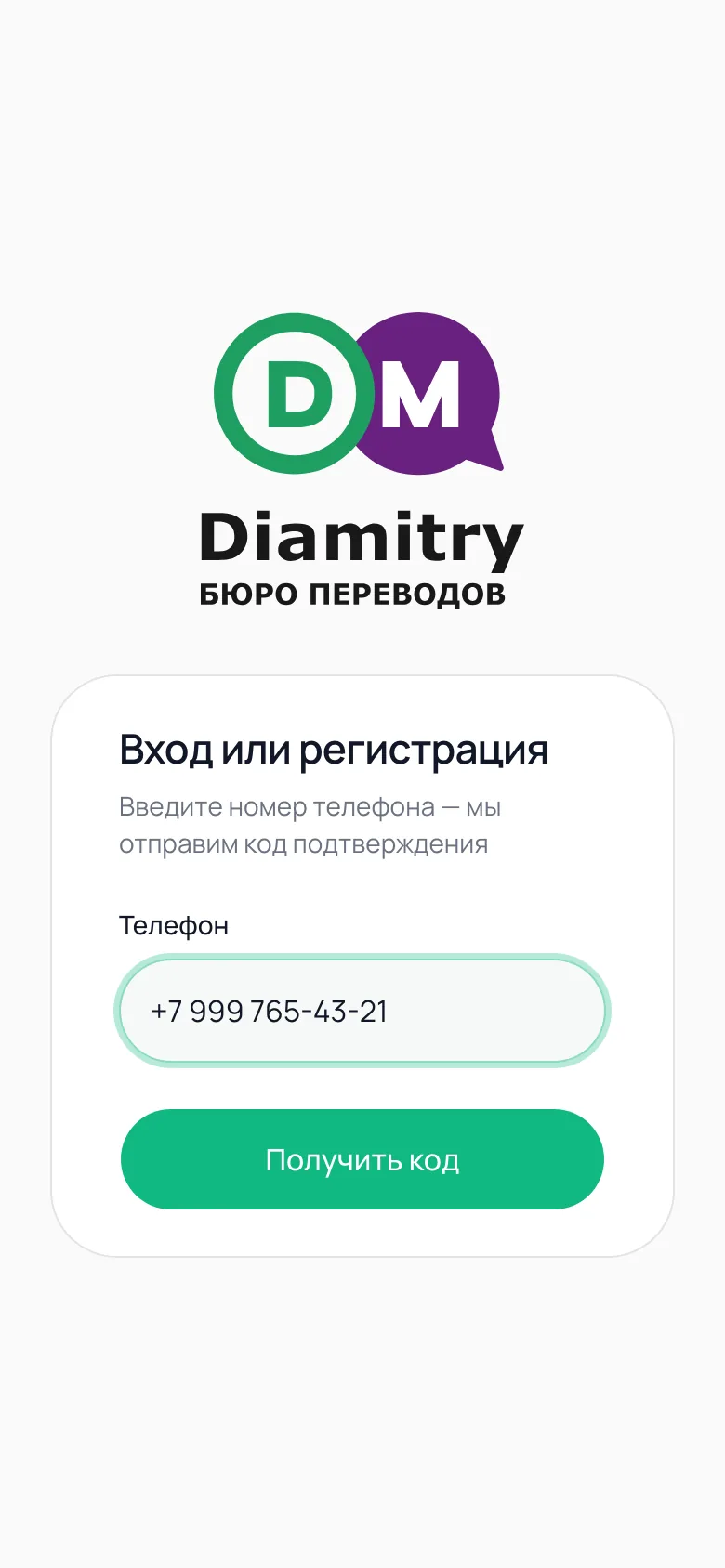
Sign in to the app with your phone
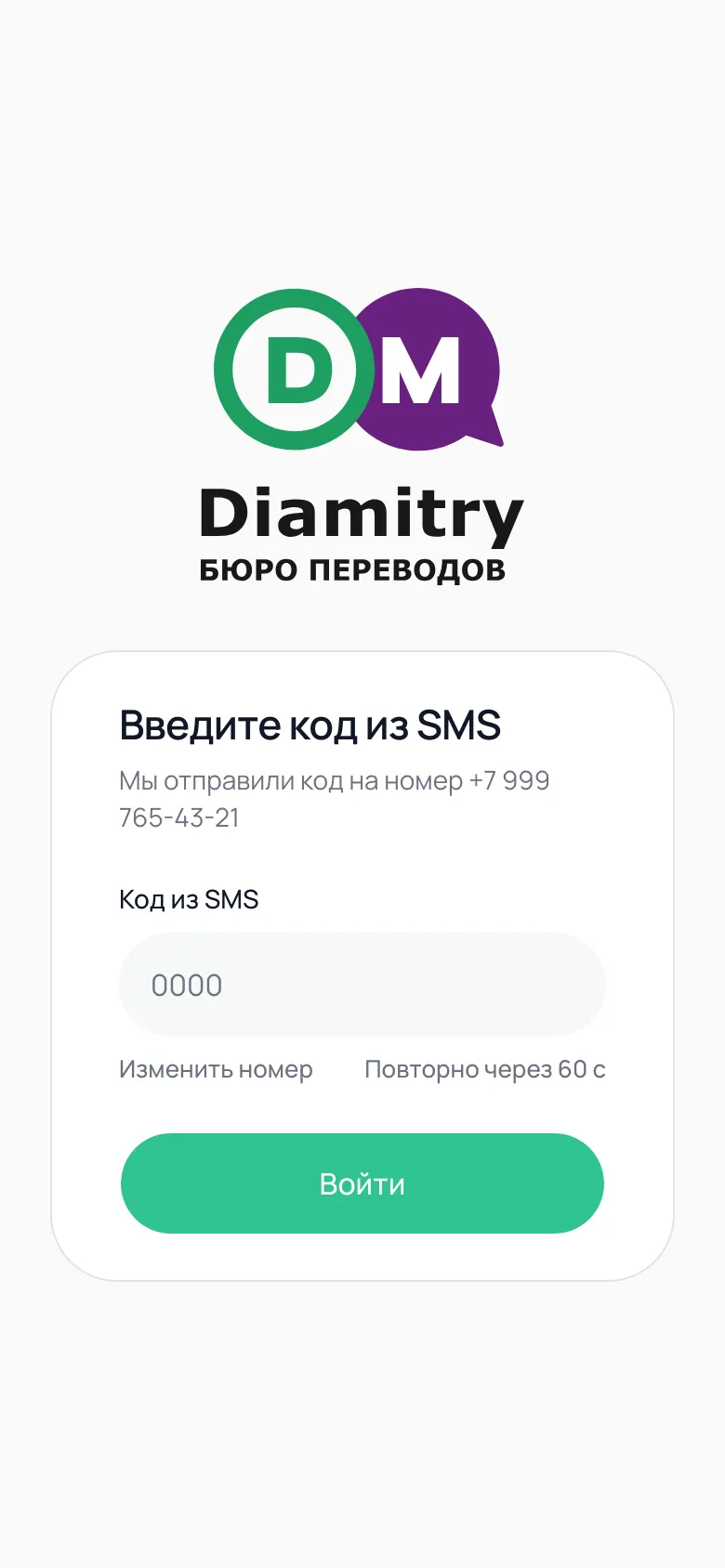
There's no separate sign-up form — it's all one step. Enter your phone number, get a code by SMS, and confirm it. If there's no account with that number yet, one is created automatically.
- The code arrives by SMS and is valid for 5 minutes
- You can request a new code no more than once every 60 seconds
- The same number is your login on other devices too
Check that partner access is turned on
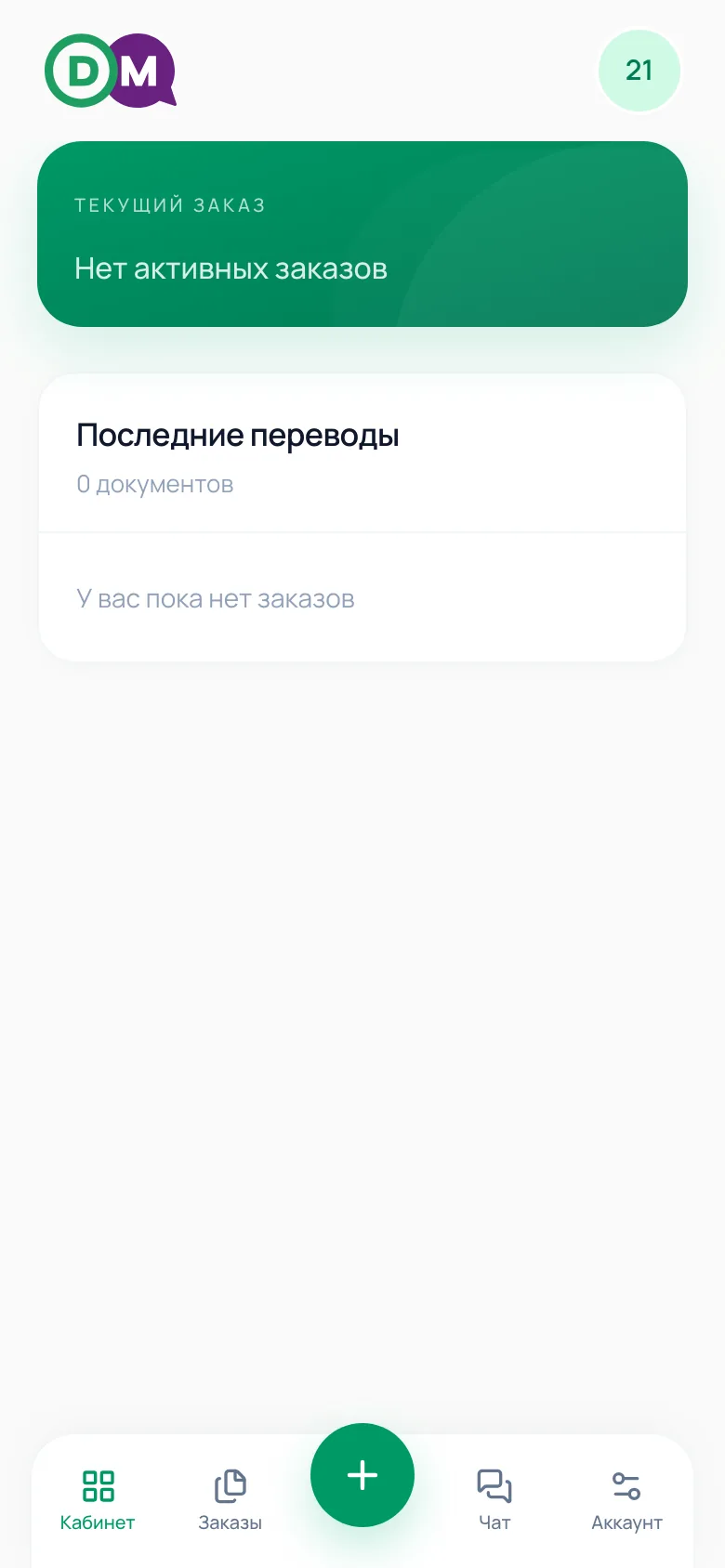
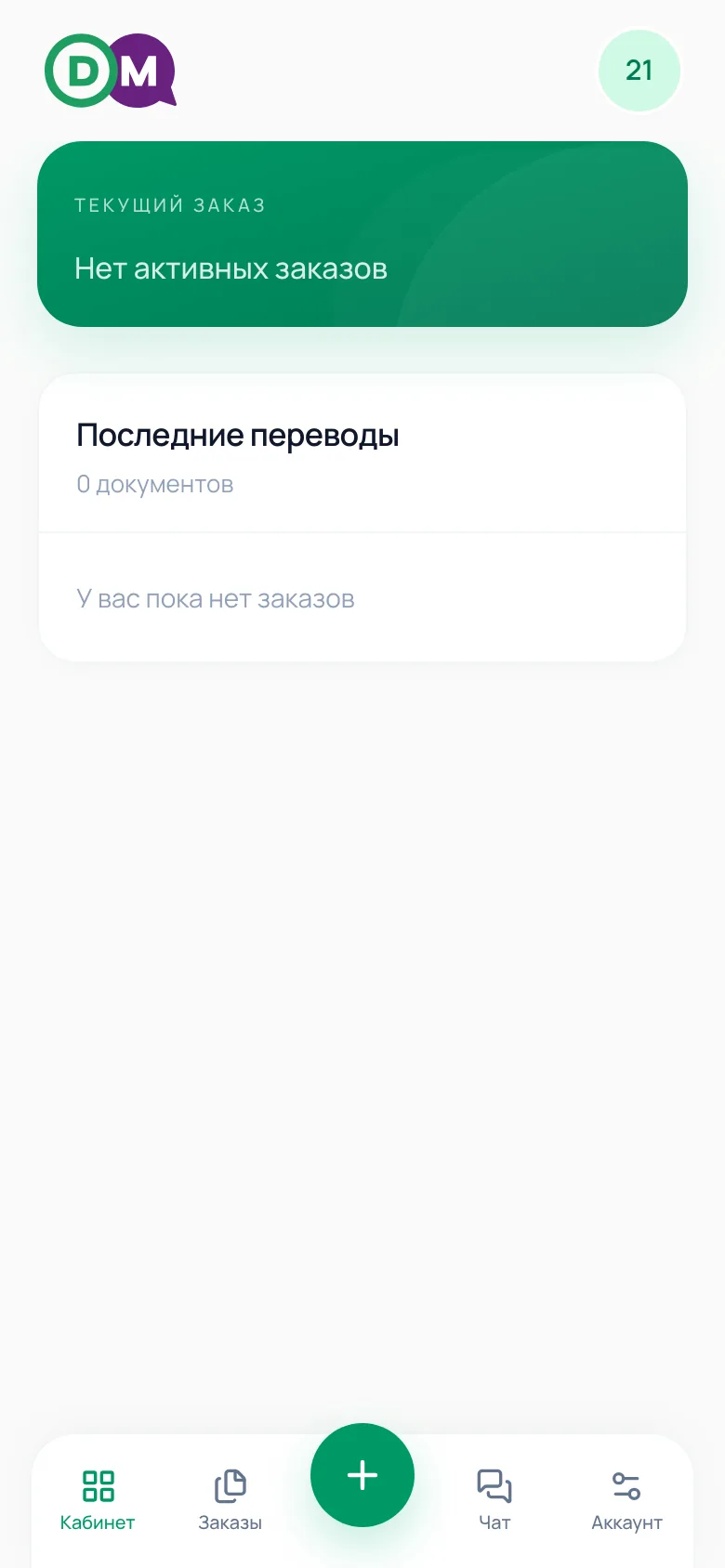
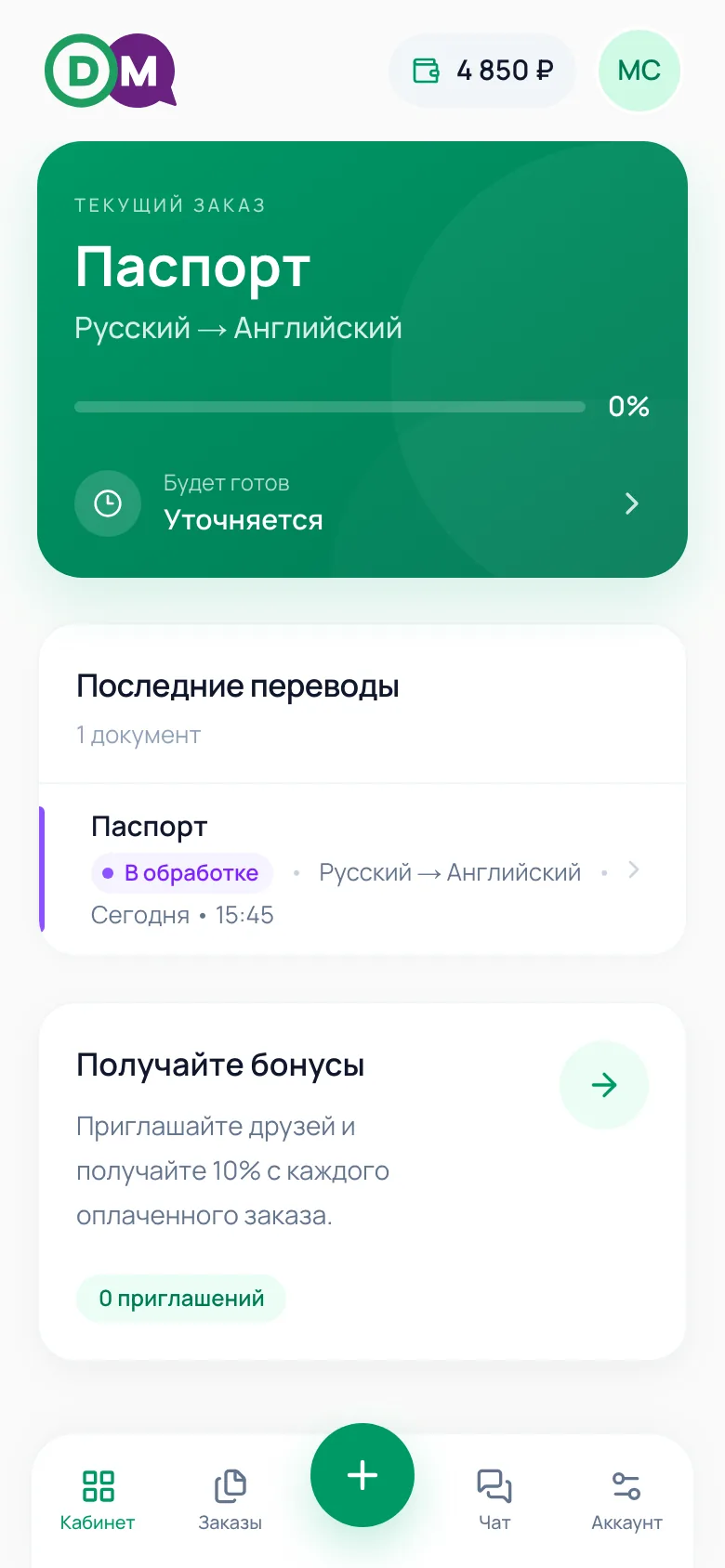
On the left — a regular account right after sign-up; on the right — the same account with partner status enabled. The difference: a wallet icon in the header and a "Earn bonuses" card.
- "Partner" status is turned on manually by a bureau manager on your account
- It's off by default for every new account
- No wallet icon means access isn't active yet — message your manager
The wallet — your link, QR code, and stats
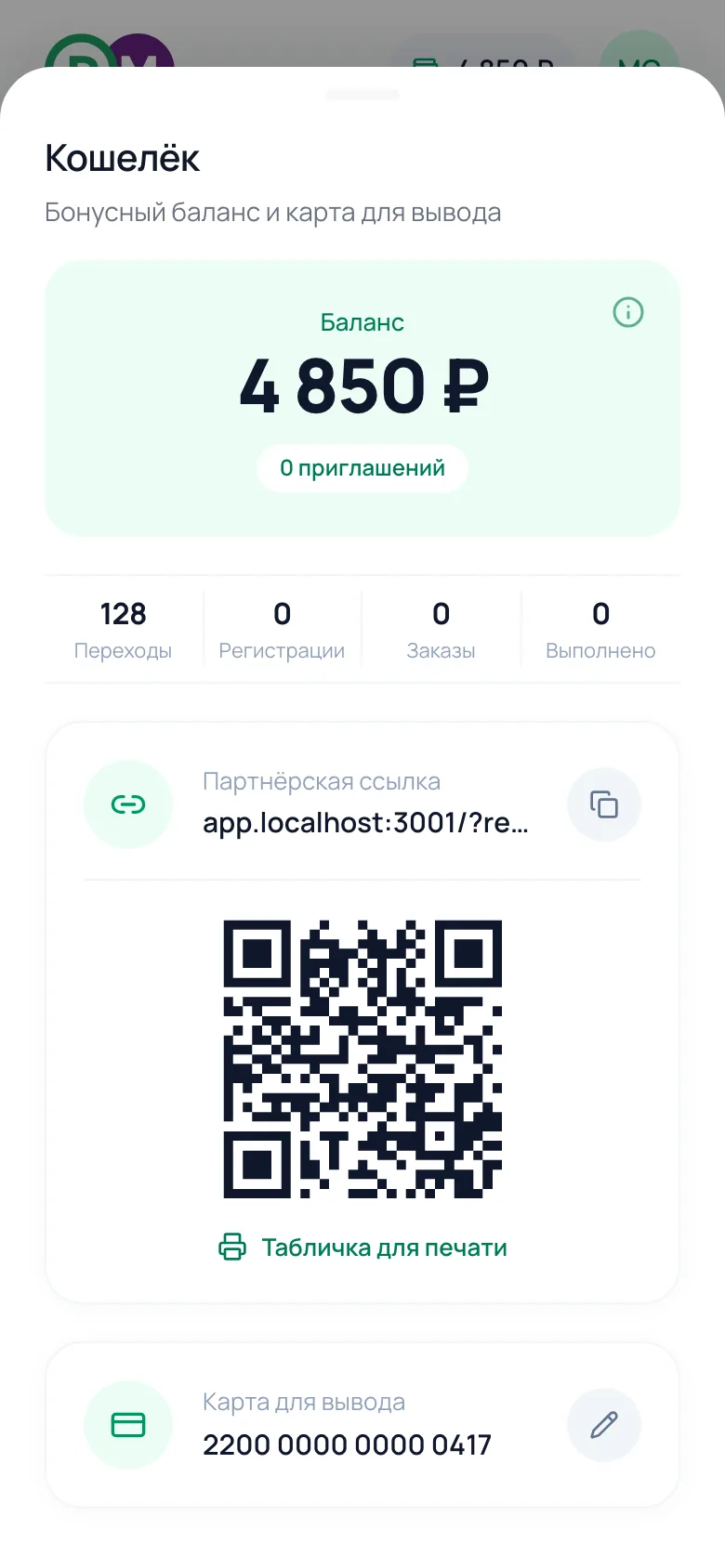
Opens from the wallet icon in the app header. The wallet fills up automatically: invite friends with your referral link and earn 10% of every one of their paid orders. Bonuses can be used to pay for orders or withdrawn to a card.
- Balance — how many bonuses you've earned so far
- Clicks / Sign-ups / Orders / Completed — your link's funnel, in real time
- Referral link — copied with one tap on the icon
- QR code and withdrawal card — further down in the same screen
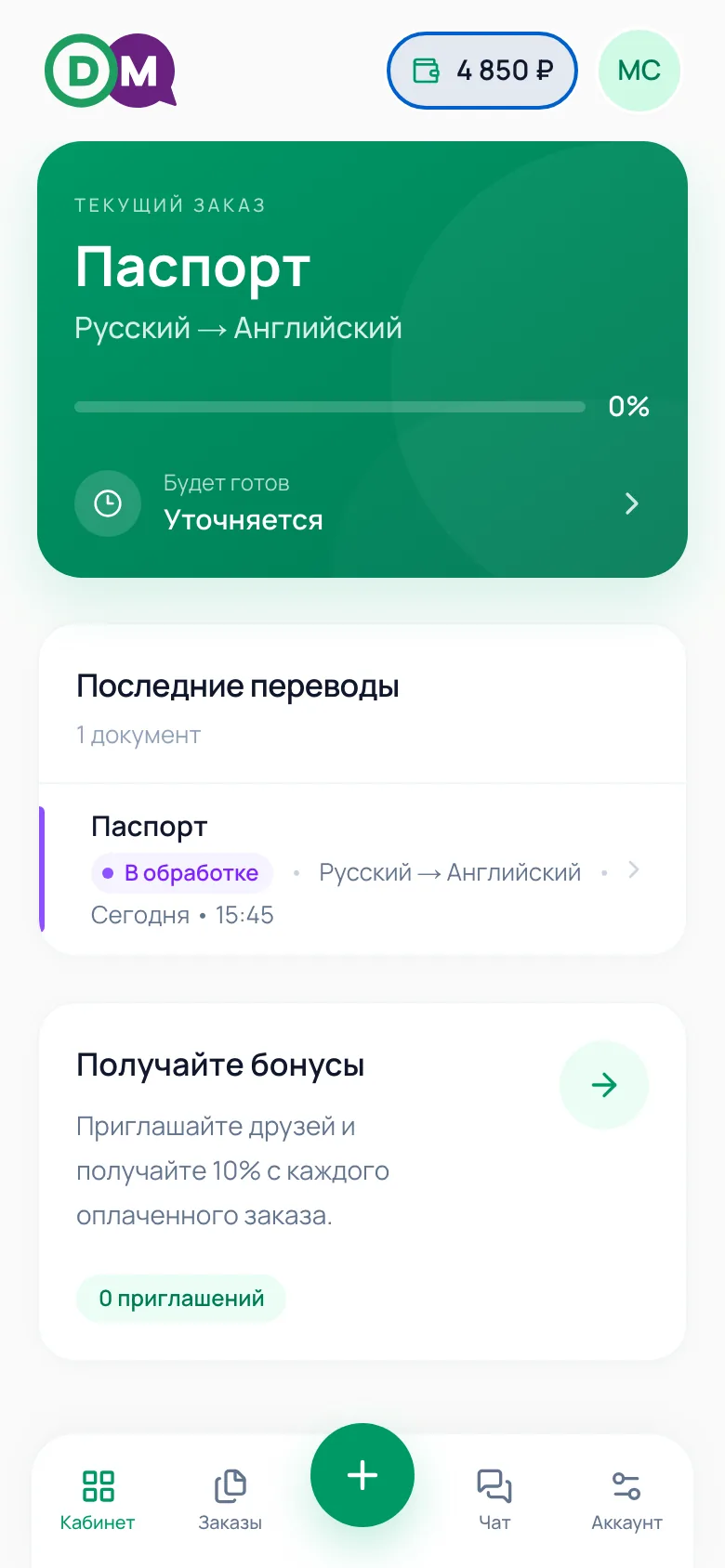
The "Earn bonuses" card
Partners see it right in their account, without opening the wallet — a short reminder that jumps straight to the referral section in one tap.
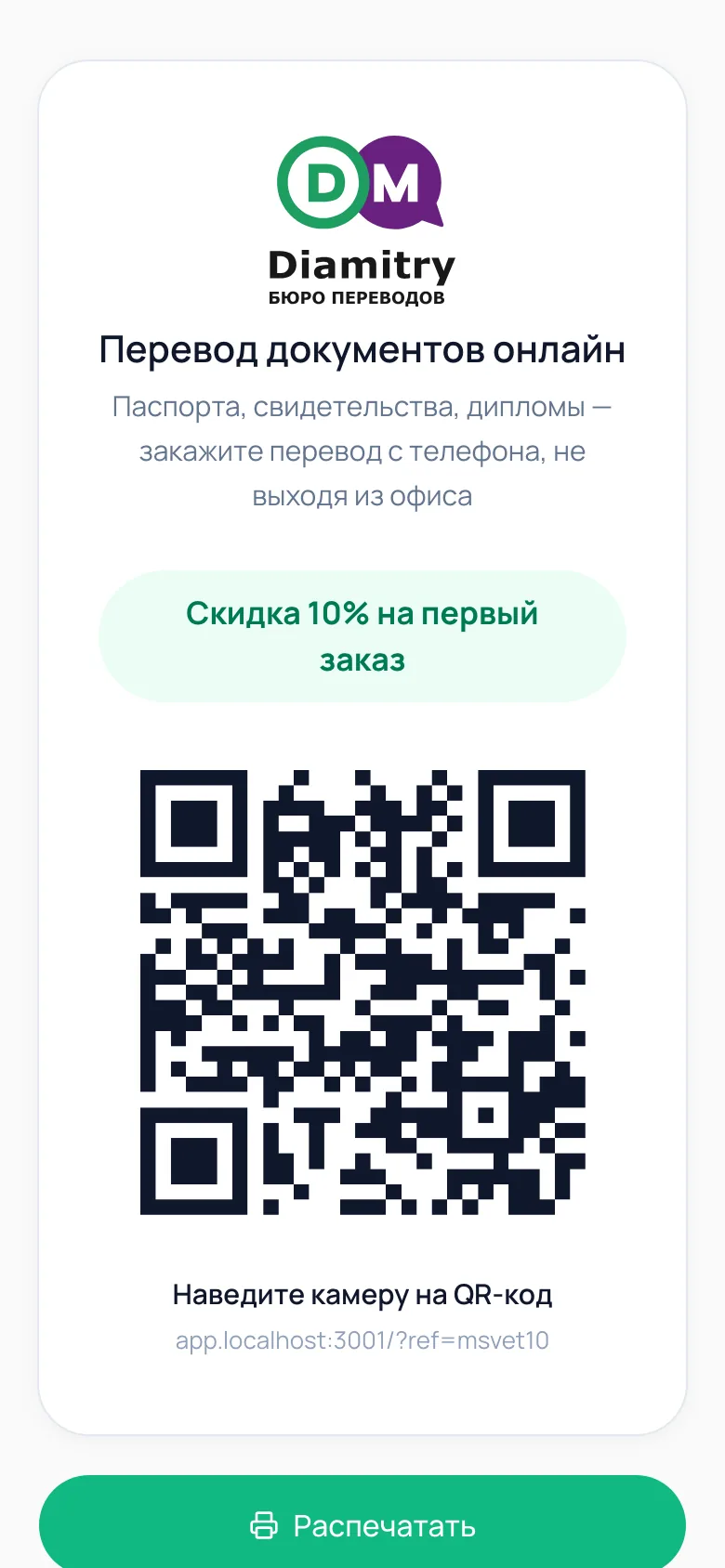
A printable table tent
The "Printable table tent" button in the wallet opens a ready-made page with your QR code — no extra interface elements, print-ready.
- Print it and set it up at your office counter
- The client points their phone camera at the QR code
- Orders placed through that code are locked to you automatically
What happens next
How a client places an order — screen by screen
It helps to know the whole path — it makes it easier to answer a friend who's already started placing an order. The form opens with the green "+" button at the bottom of the screen and is a chain of short sheets rather than one long questionnaire.
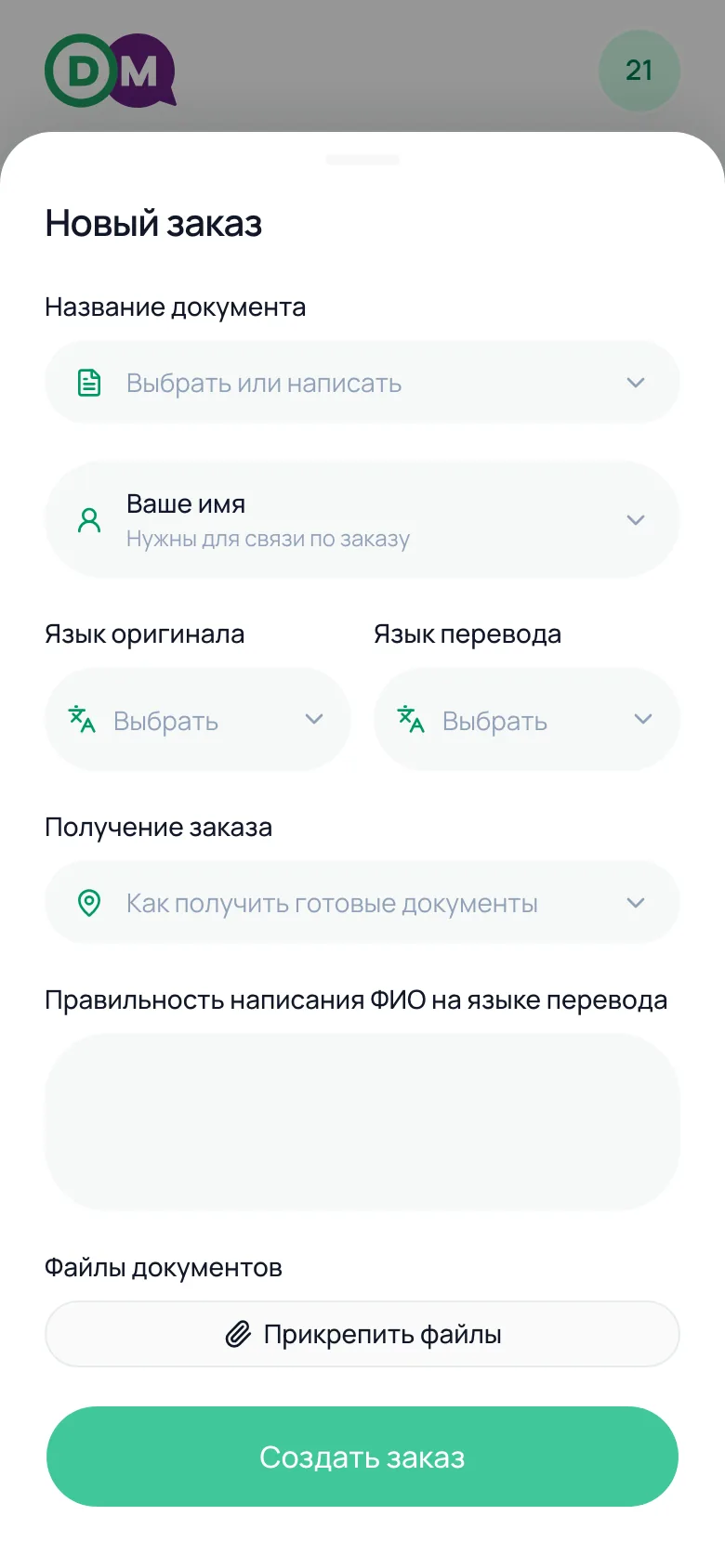
Open the form
The "+" button in the bottom menu
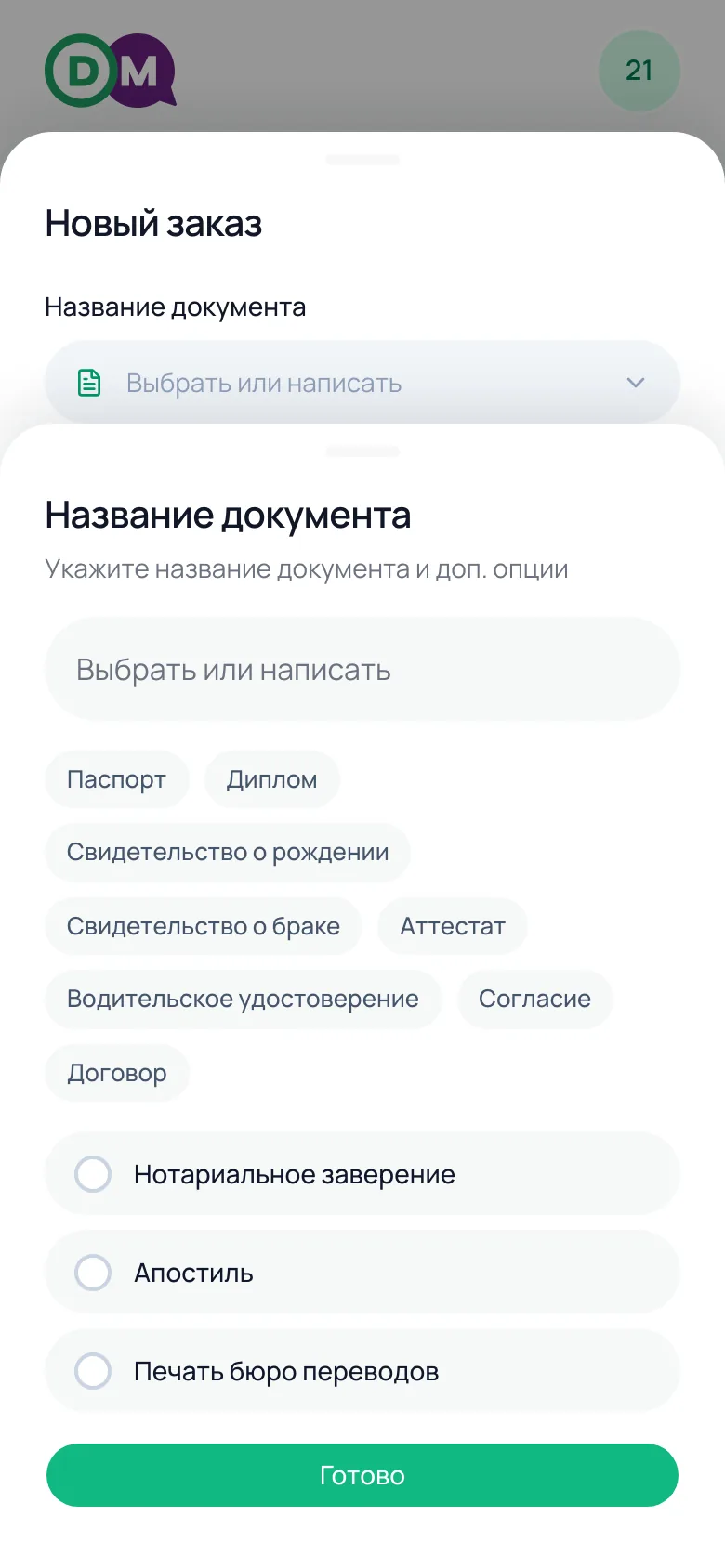
Document
Ready-made options: passport, diploma, certificate, and more — or your own text
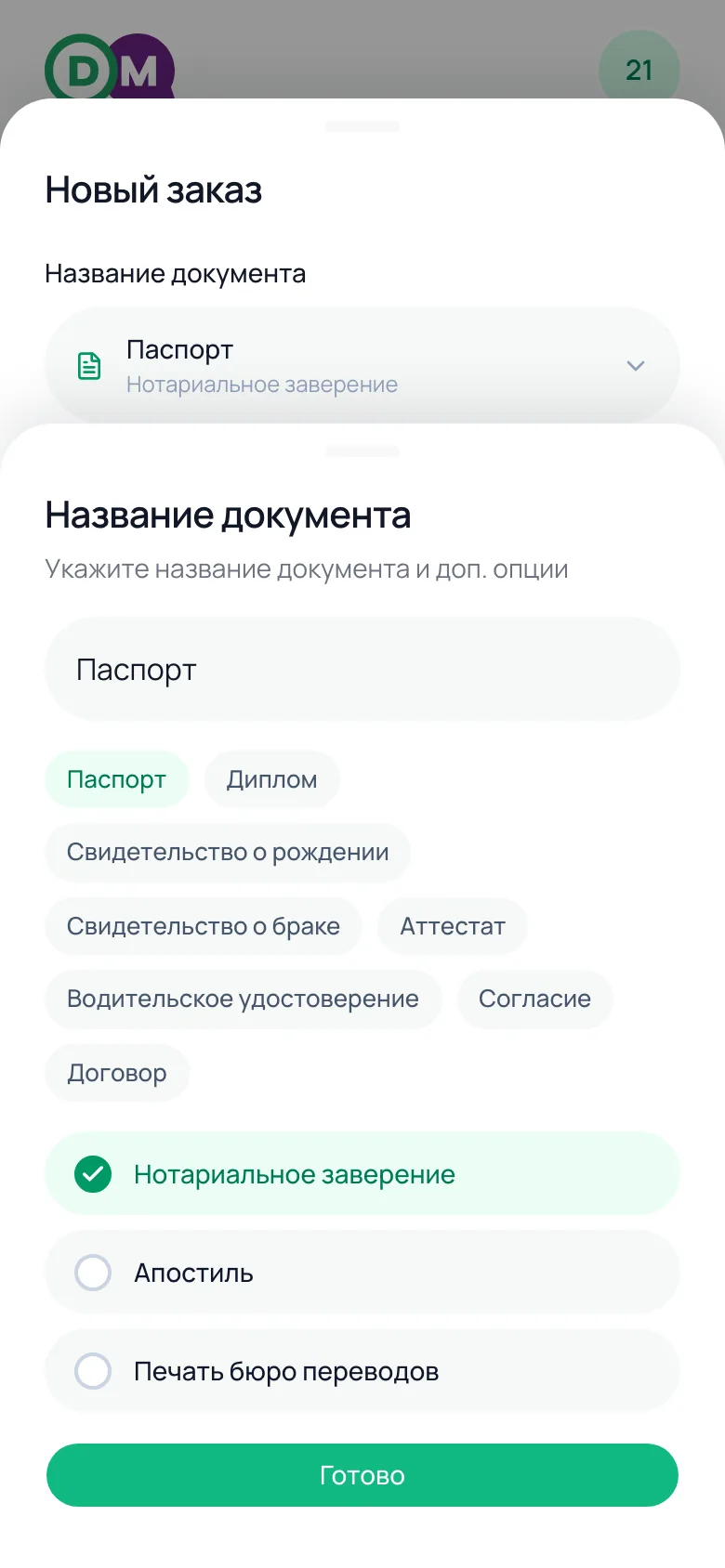
Extra options
Notarization, apostille, bureau stamp — a checkbox each
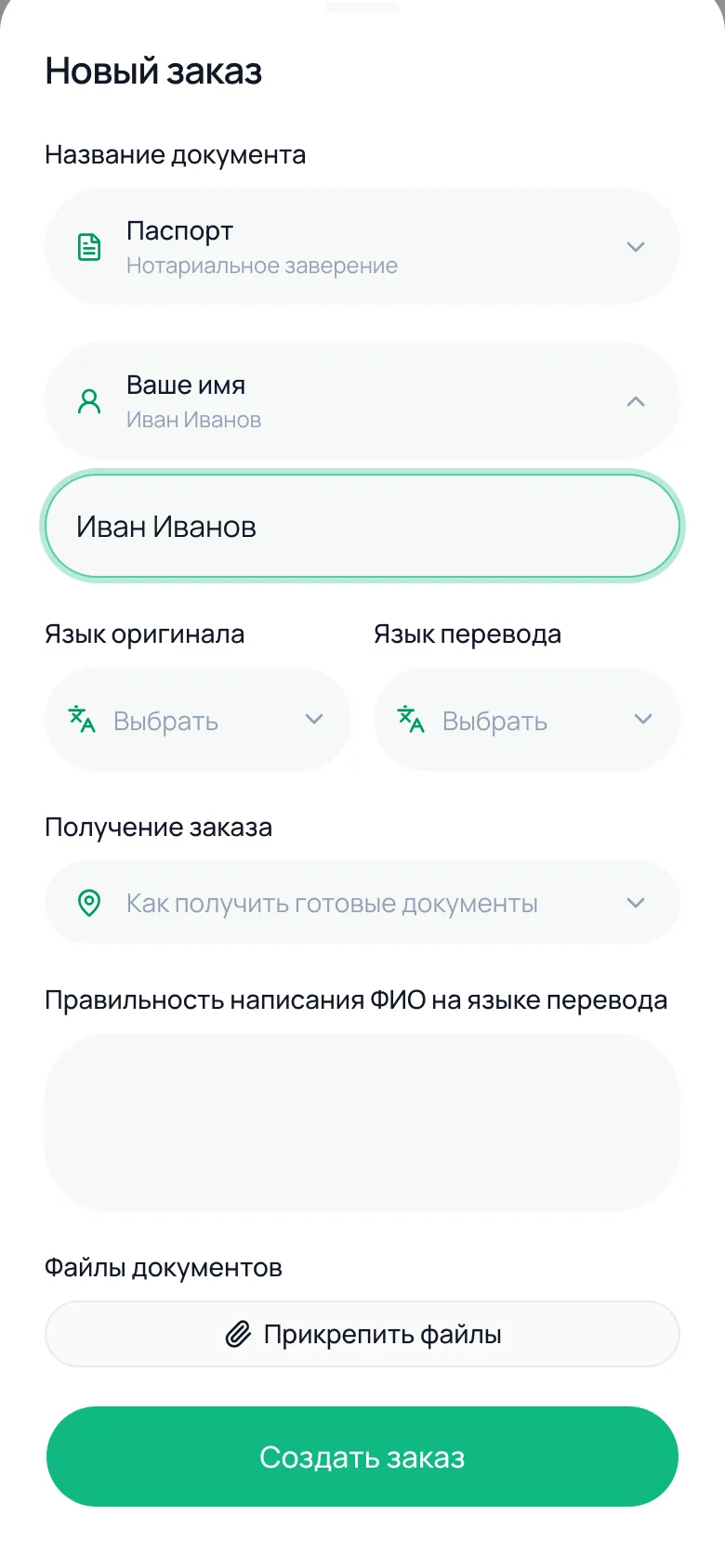
Contact details
Name and phone are asked only once, on the first order
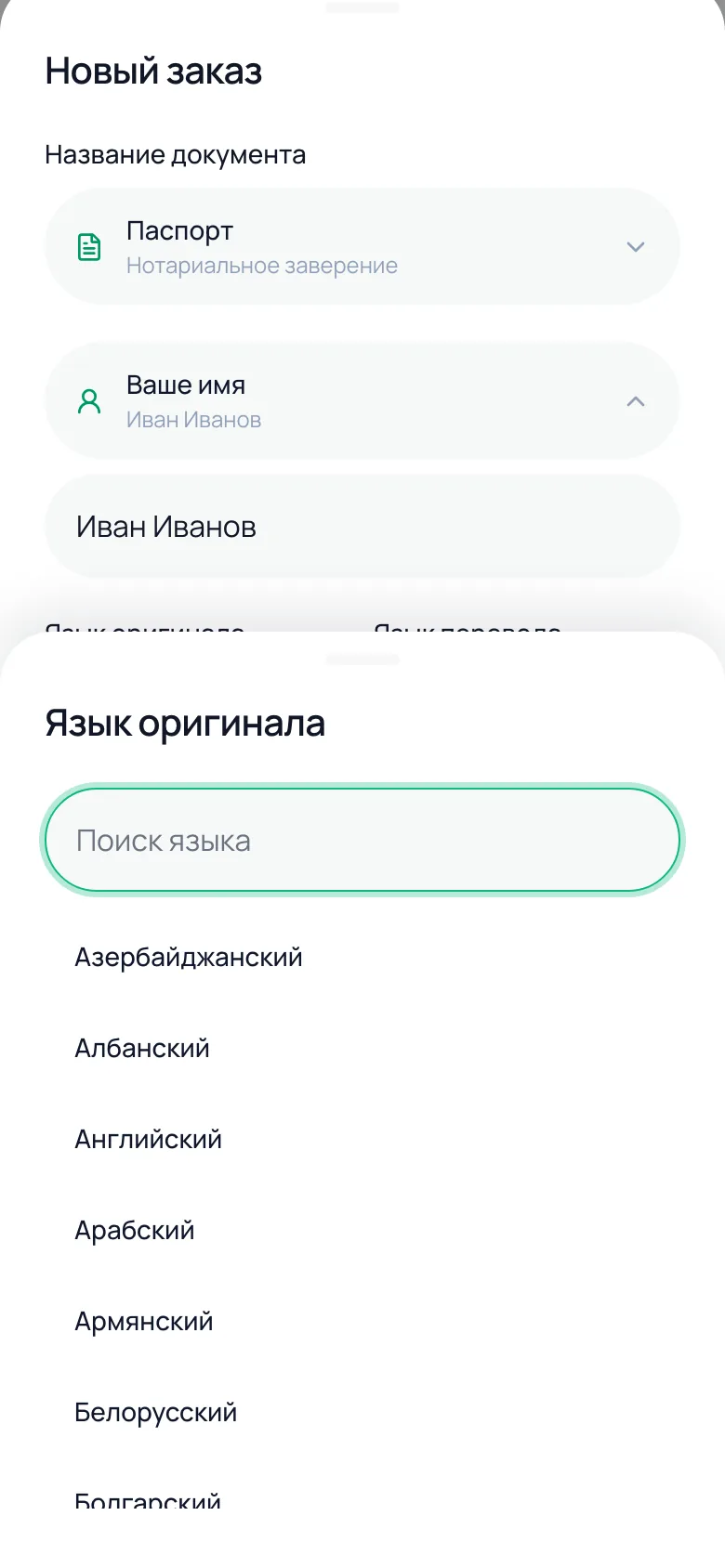
Languages
The language list is pulled from the bureau's services, with search
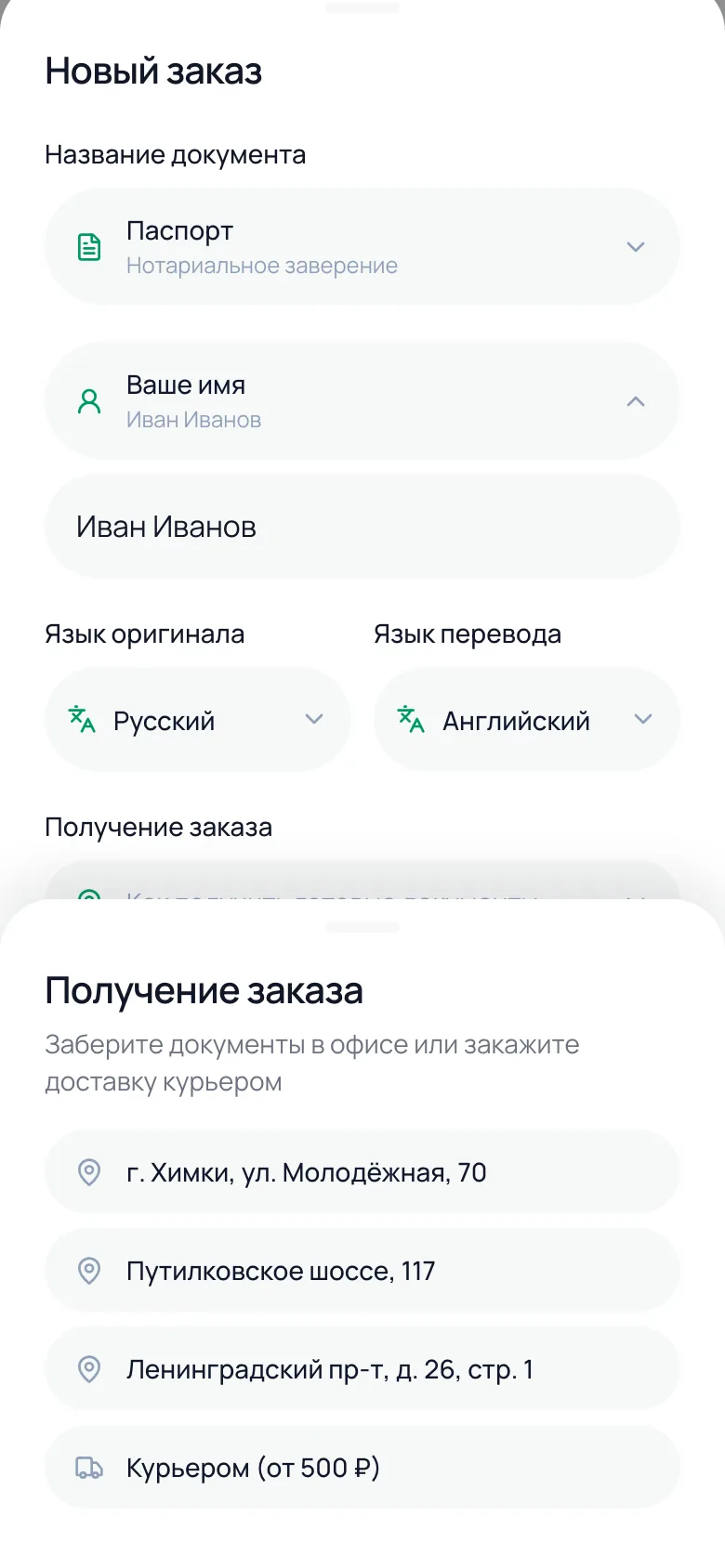
Pickup
A specific office — or a courier from 500 ₽, with a delivery address
How photo upload works
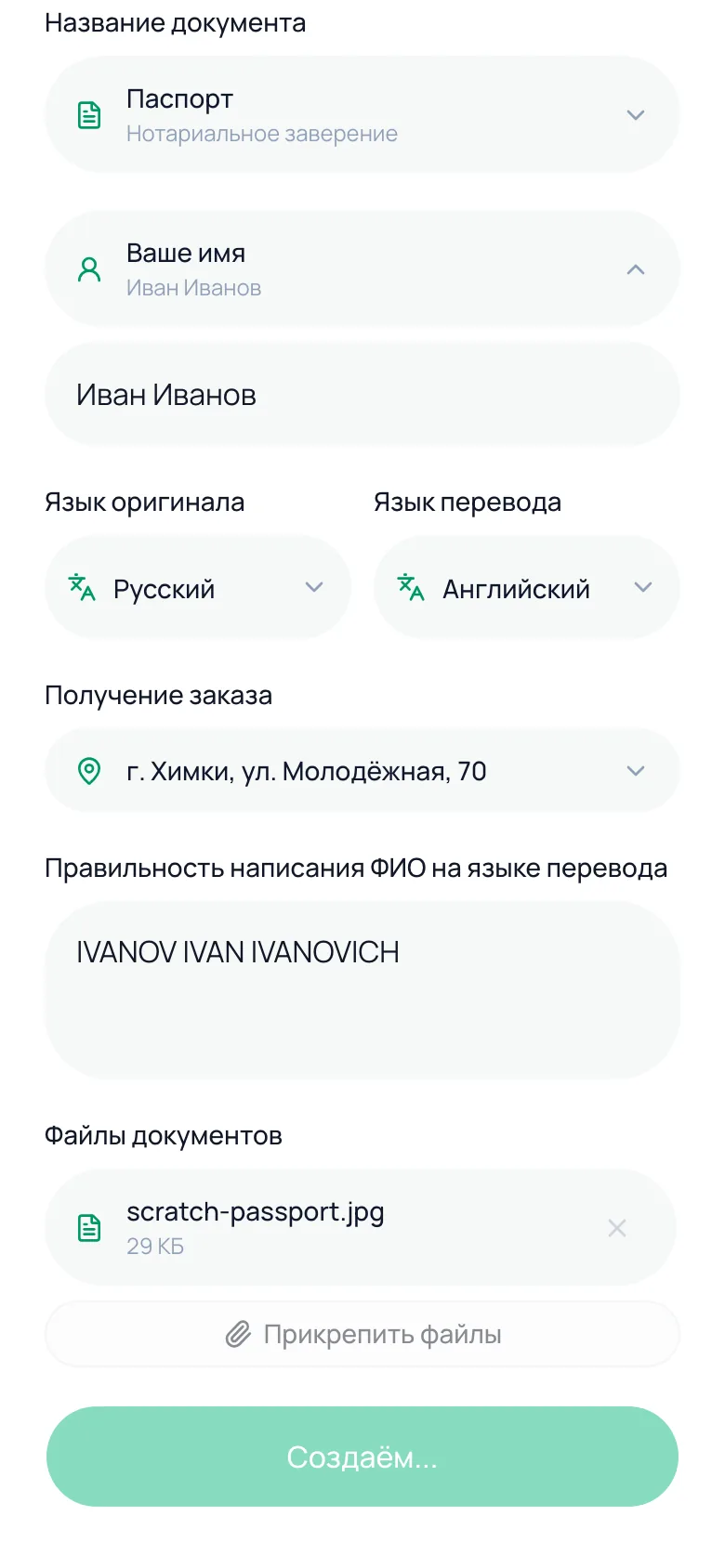
Next comes the "Spelling of the full name in the target language" field (critical for accuracy in passports and certificates) and attaching files. The "Attach files" button opens the system photo picker — you can photograph the document right there or pick an existing shot from the gallery.
- Every attached file shows in a list with its name and size — you can remove it before sending
- The order is created first, then files upload one by one after it — if the connection drops on one file, the rest aren't affected
- Each file in the list has its own status: uploading → uploaded (checkmark) → failed (can be retried from the order page)
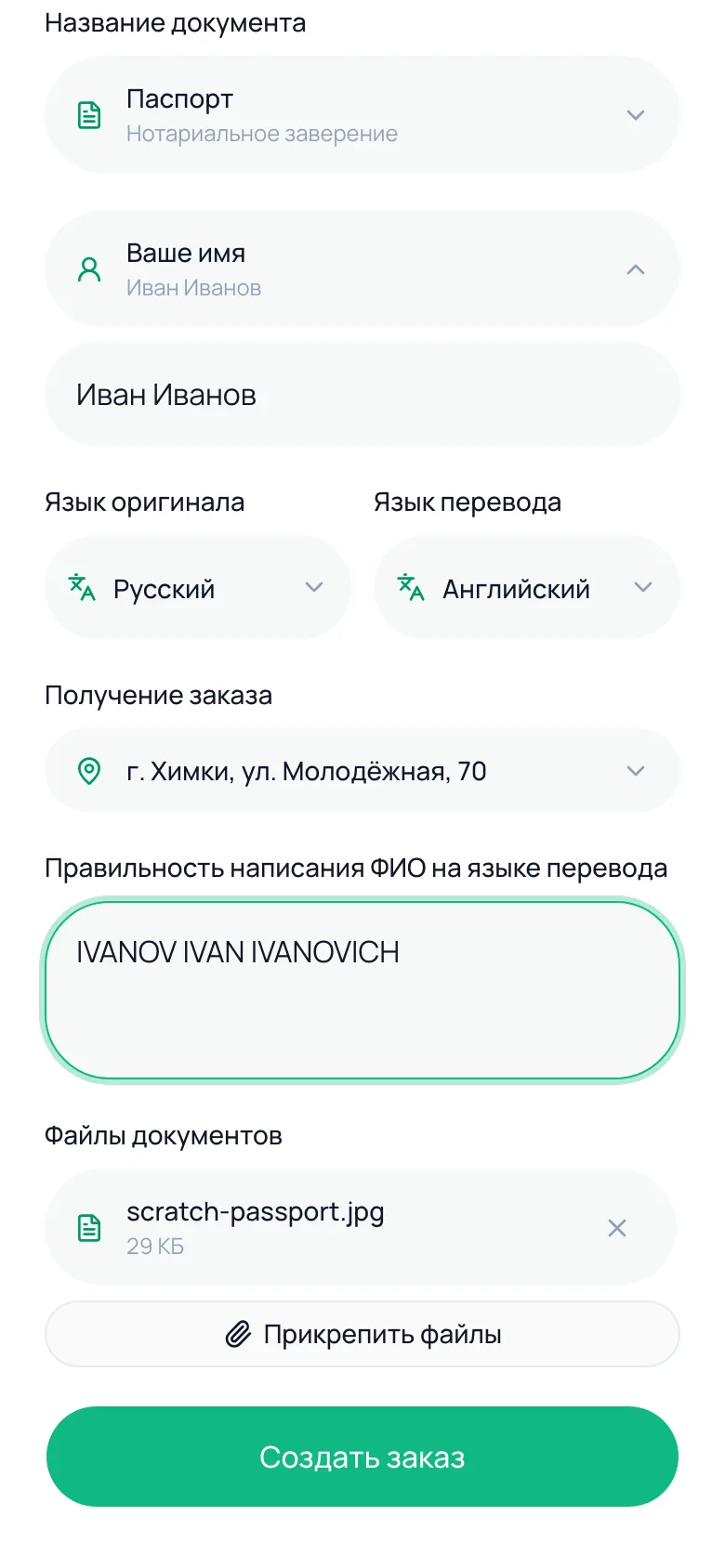
Order created — the bureau takes it from here
After tapping "Create order", the button reads "Creating…" for a few seconds, then "Uploading files N of M…" while the attached photos upload to the bureau. There's no separate in-app payment screen — the bureau manager discusses the price and payment method with the client separately, usually in the order chat.
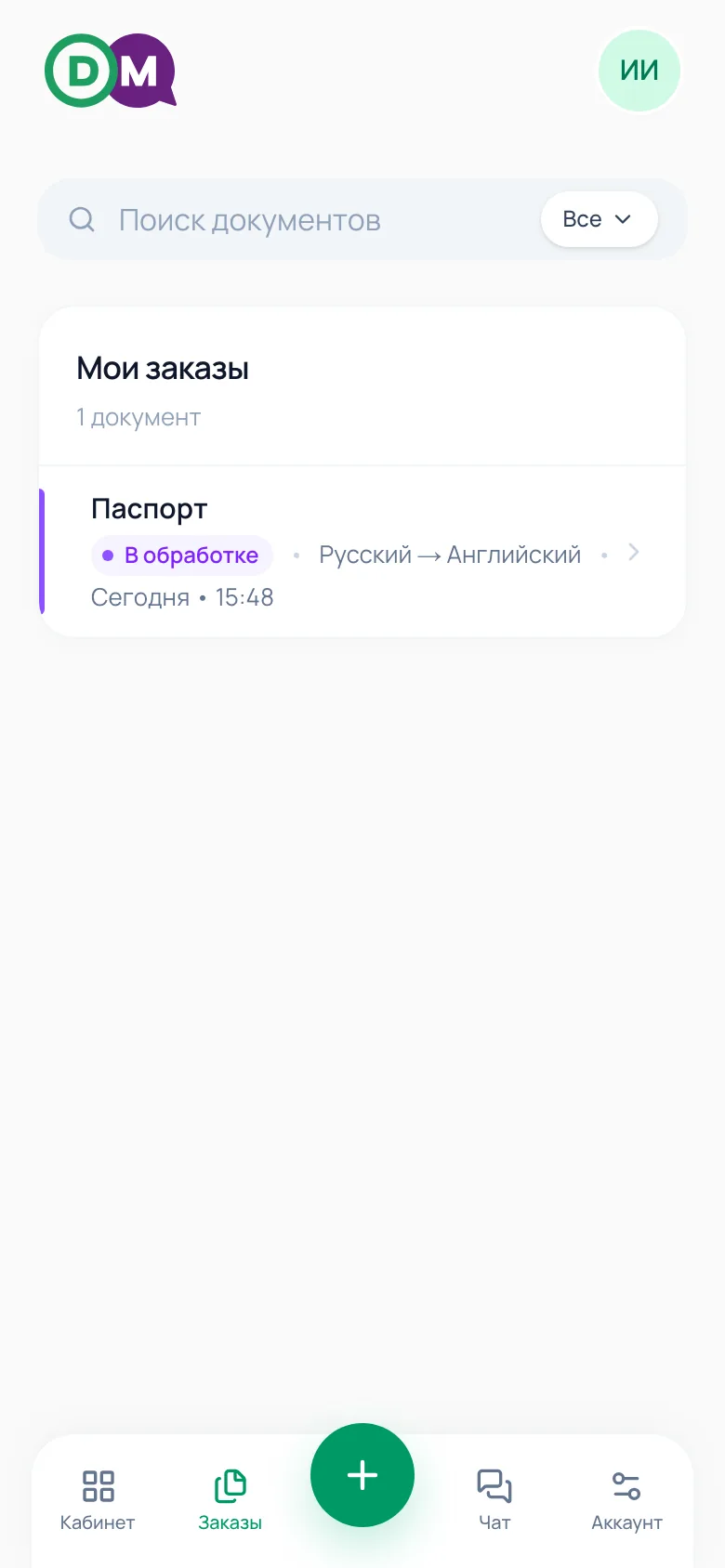
- The order appears right away in the "Orders" list with a "Processing" status
- The bureau manager sees it in their CRM and reaches out about the details and price
After placing an order
Order tracking and chat with the manager
From this point, the client follows the translation themselves, with no phone calls — status, files, and messages are all in one place.
Orders
The "Orders" tab — the full translation history
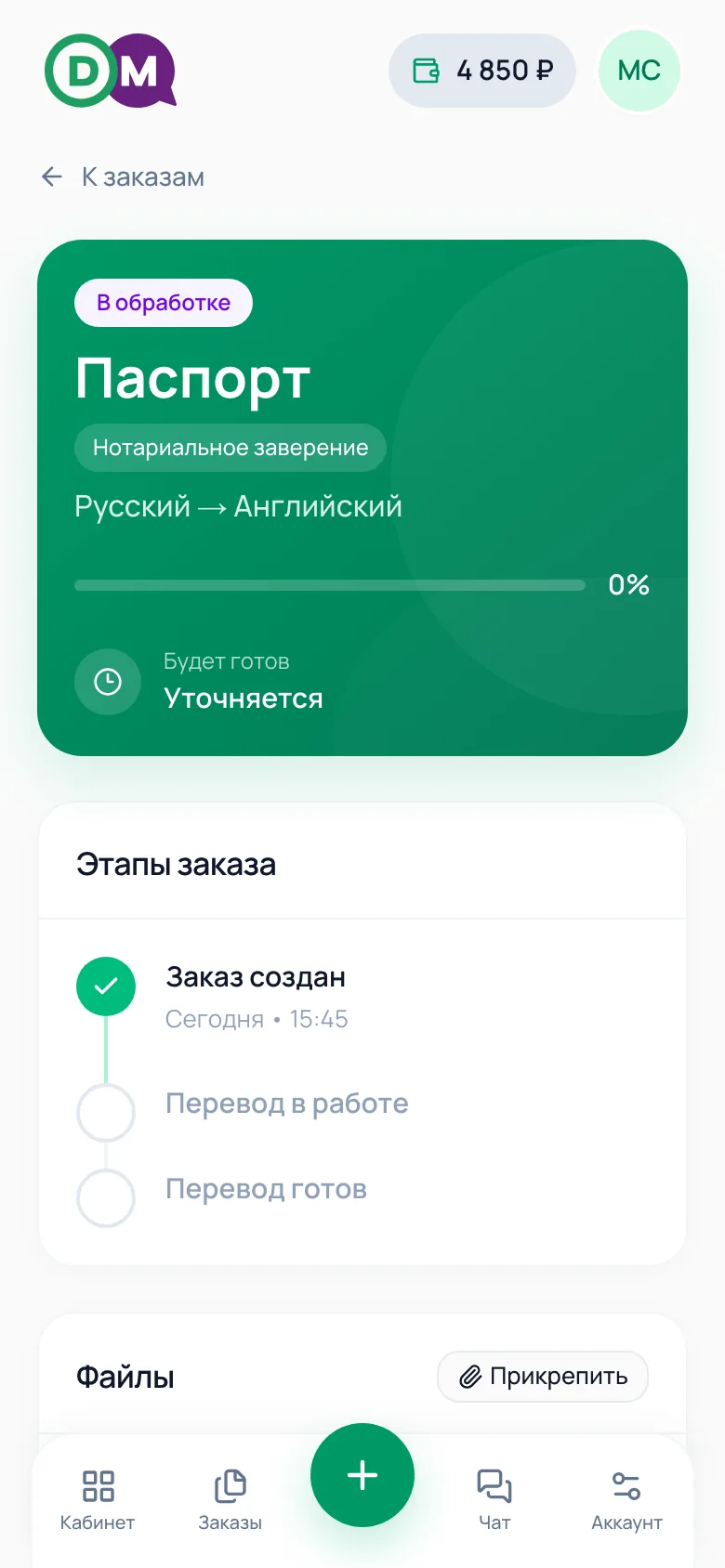
Order card
Status, translation direction, ready-by date
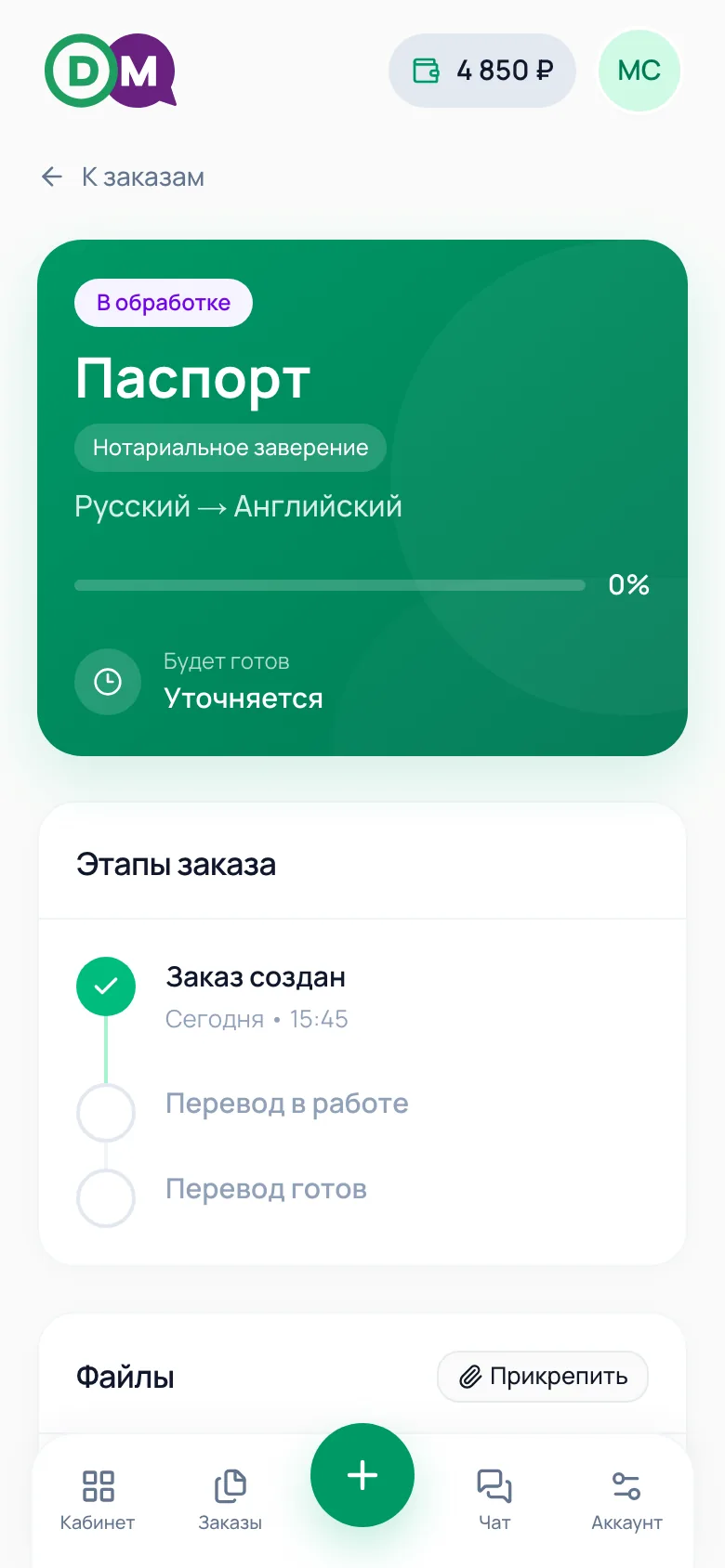
Stages
"Order created" → "Translation in progress" → "Translation ready", files right there too
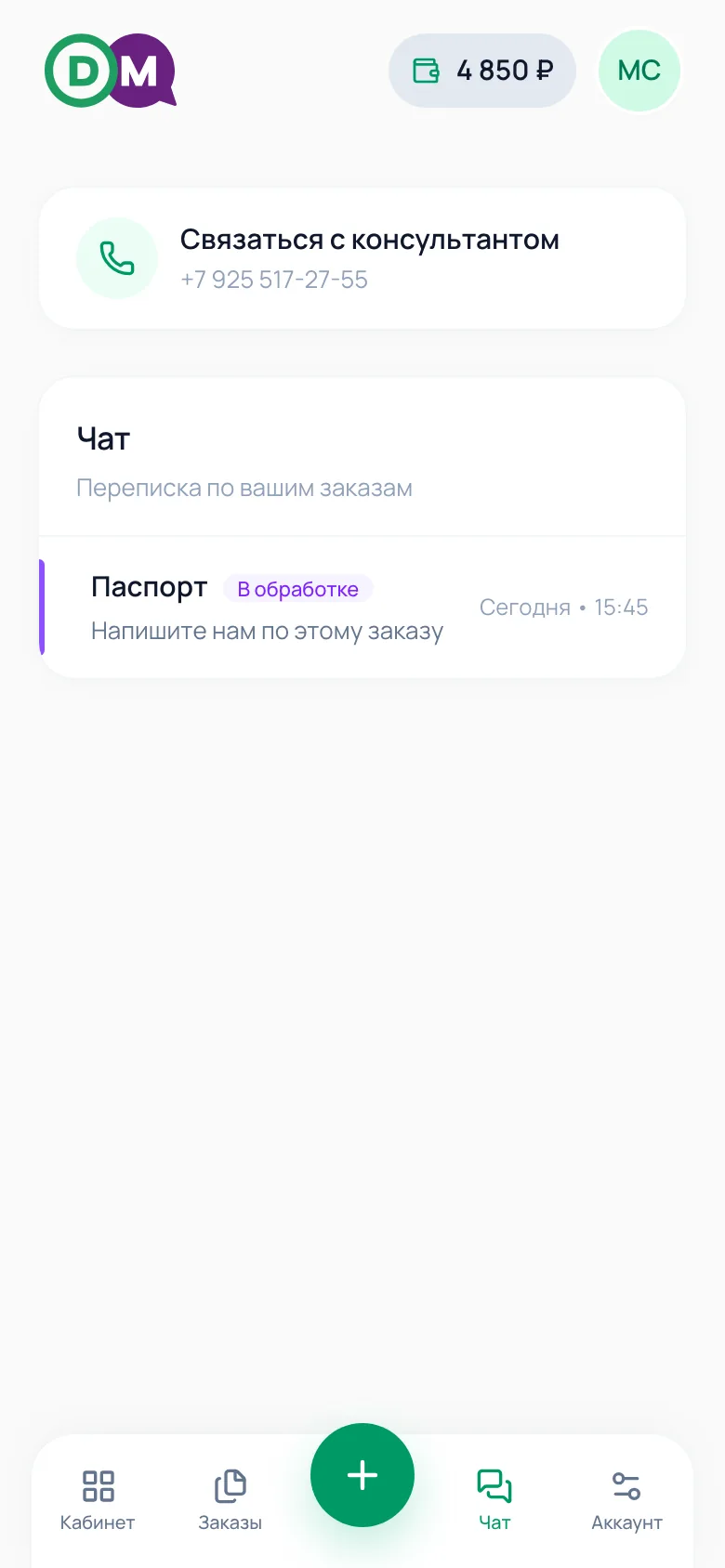
Chat
A separate thread for every order, plus a direct line to the consultant
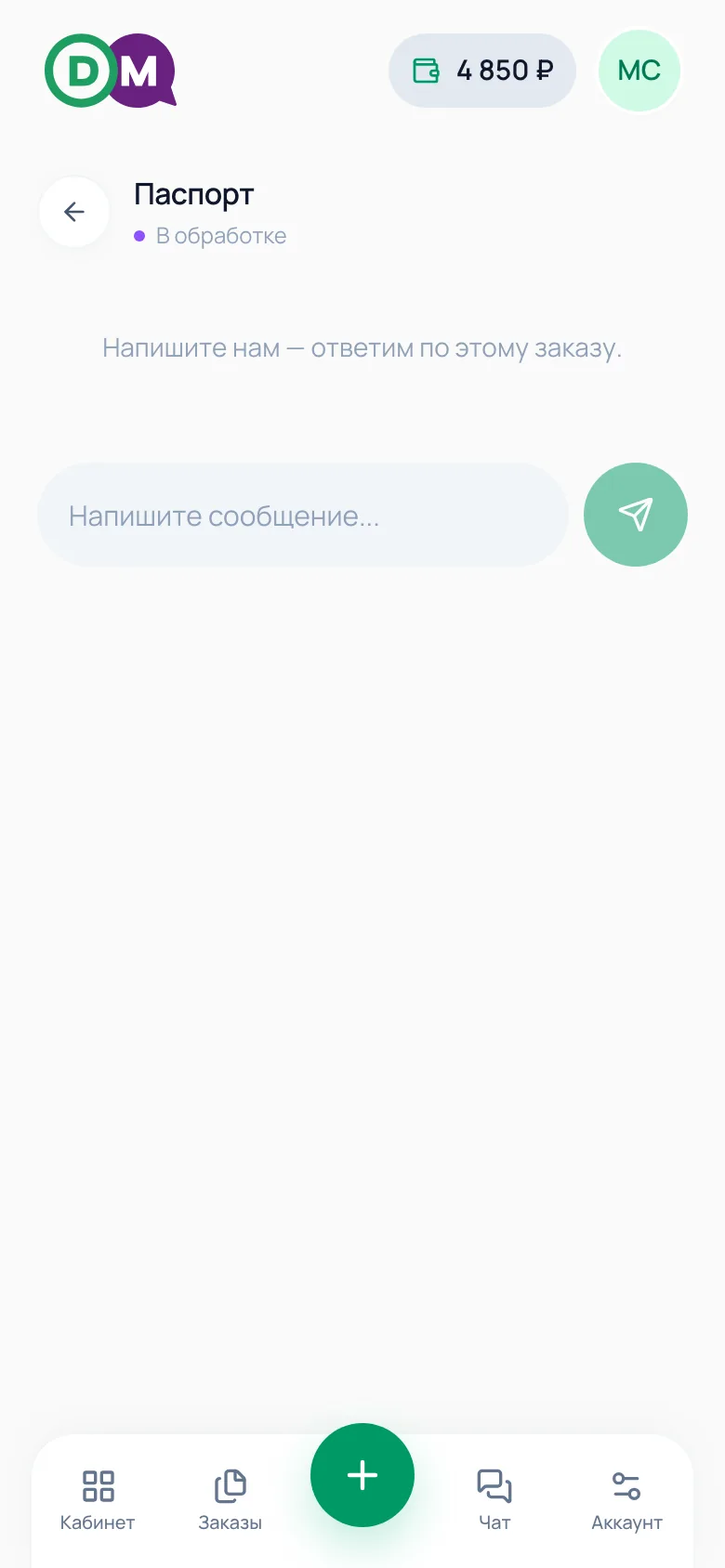
Messages
Questions about timing and price — right here
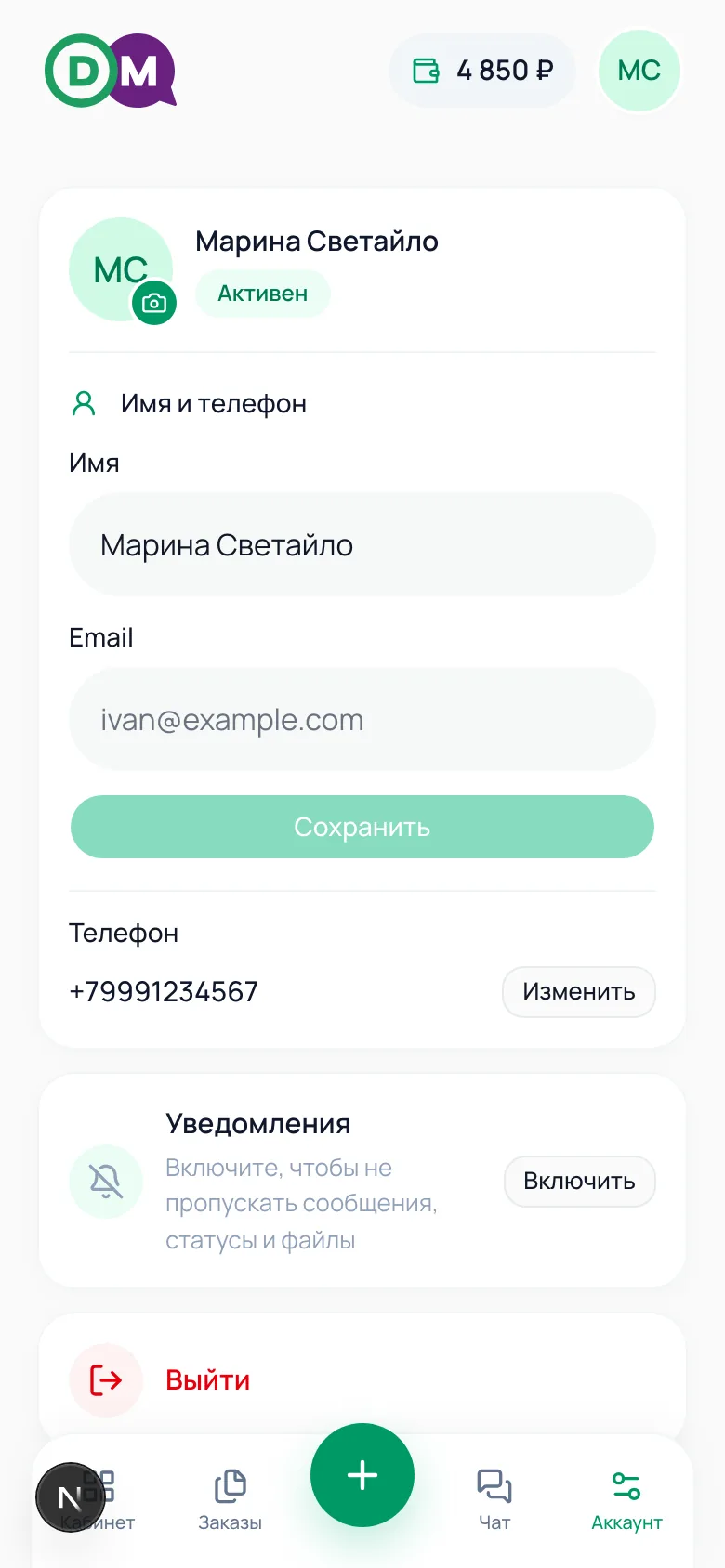
Name, phone, and withdrawal card
Opens from the avatar in the app header. This is also where you change your phone number (no repeat SMS check) and set up notifications, so you never miss a manager's message or an order status change.
The rules, in short
What's worth remembering
Bonuses accrue only on payment
The 10% is credited once the referred client's order is actually paid — not when it's created.
Access is turned on manually
The wallet and link only show up with active partner status — if they're missing, it's not the app, it's your account status.
Your link and QR code are personal
Both point to the same referral code — use your own, not someone else's: the order is locked to whichever link was used.
Stats update in real time
Clicks, sign-ups, and orders update in the wallet automatically — no need to restart the app.